Blog

  • What Is an XML Sitemap? Best Practices, Common Errors and How to Fix Them

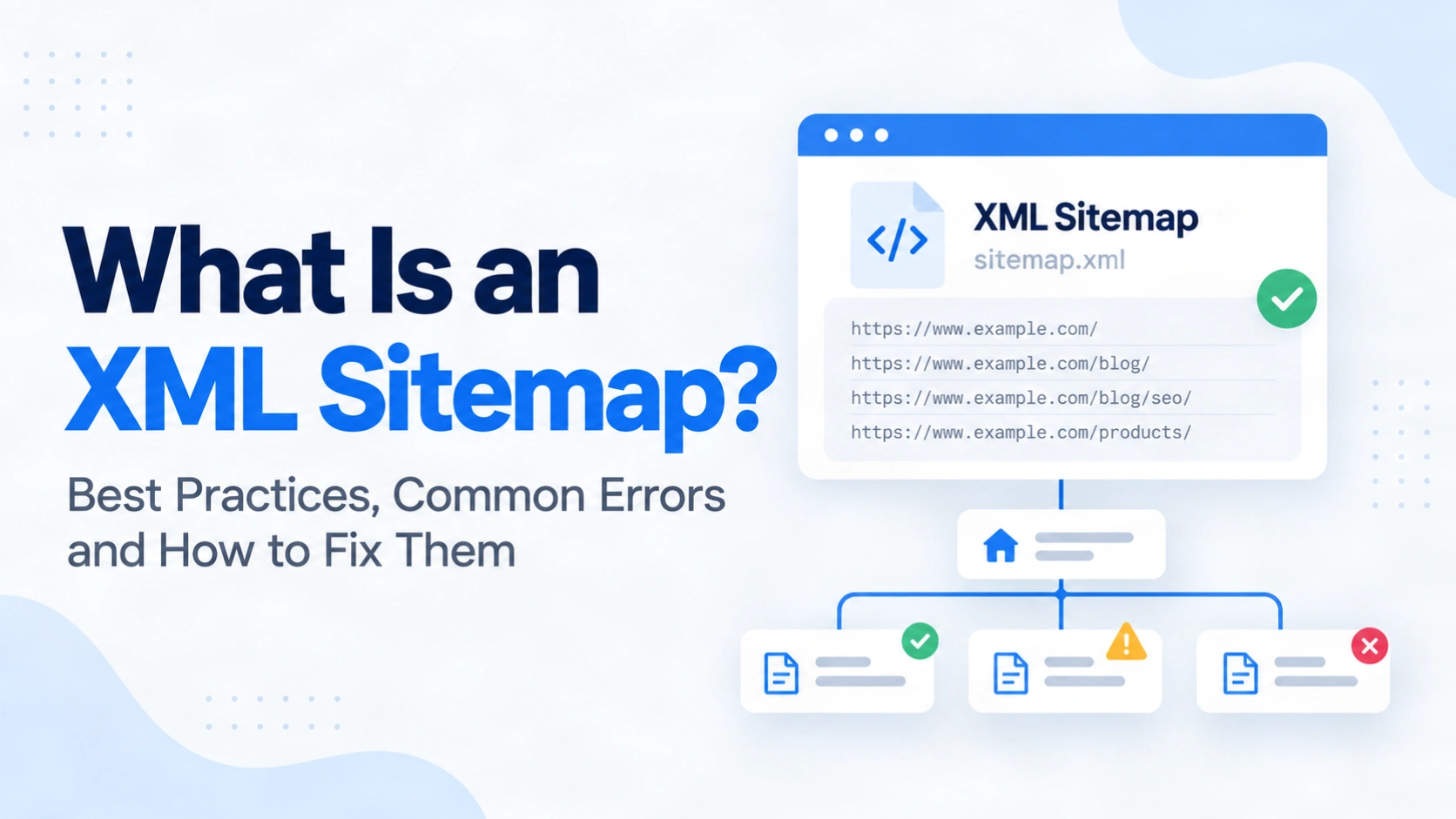
    What Is an XML Sitemap? Best Practices, Common Errors and How to Fix Them

    An XML sitemap is a file that lists the URLs you want search engines to discover. It can help Google find a new page, but listing that page does not mean Google will crawl or index it. That distinction matters when a sitemap appears healthy while important pages remain absent from search results.

    The practical task is to publish a file that reflects your preferred, accessible pages and then read the right evidence when something goes wrong. A broken file, an invalid URL inside it and a page that Google chooses not to index require different responses. This guide explains what belongs in an XML sitemap, how to create and submit one, and how to diagnose common errors. It also shows what to check after a fix, so a successful submission is not mistaken for proof that every page is indexed.

    Quick summary

    • A sitemap helps search engines discover URLs; it does not guarantee indexing.
    • Include preferred pages that you want indexed, and keep redirects and errors out of the list.
    • Use accurate update dates, and split files that exceed Google’s size limits.
    • Diagnose the sitemap file and individual page URLs separately in Search Console.

    What is an XML sitemap?

    An XML sitemap is a structured URL list for search engines. Each entry has a <loc> value containing the full URL and may have a <lastmod> update date. An HTML sitemap is a navigable page for visitors.

    Here is a minimal example based on the sitemap protocol’s required structure:

    <?xml version="1.0" encoding="UTF-8"?>
    <urlset xmlns="http://www.sitemaps.org/schemas/sitemap/0.9">
      <url>
        <loc>https://www.example.com/services/</loc>
        <lastmod>2026-10-01</lastmod>
      </url>
    </urlset>
    

    The address and date are illustrative. Google says a sitemap is especially useful for large or new sites and media-rich content. Well-linked pages can often be discovered without one. A sitemap cannot replace crawlable internal links.

    Which URLs belong in an XML sitemap?

    Include the version of each page you want Google to show. Choose the preferred canonical URL and check that the page is accessible and intended for indexing. A sitemap is a weak canonical signal, so Google can still select another version.

    Include important product, service and article URLs that return a successful response. Remove URLs that redirect, error or duplicate another page. Exclude pages marked noindex, such as private thank-you pages. If a valuable page is blocked in robots.txt, fix that rule; a sitemap entry cannot override it.

    Google’s canonical URL guidance recommends absolute URLs and the preferred version of duplicate content. Specialist extensions for images, videos and translated pages are optional.

    XML sitemap best practices that matter to Google

    Keep the file current as pages move or change. Let your CMS generate it if the output reflects your indexing rules. Review it after a migration or template change.

    Use <lastmod> only when accurate. Google may use it for meaningful changes to content, structured data or links. A footer date change is insufficient. Google ignores <priority> and <changefreq>.

    Google’s XML sitemap requirements limit each file to 50,000 URLs or 50 MB uncompressed. Use UTF-8, escape special characters and split larger sets using a sitemap index. A valid file can still contain unsuitable URLs.

    How do you create, find and submit a sitemap?
    First, check whether your platform creates one. Look for a Sitemap: line in robots.txt, consult your CMS or try /sitemap.xml and /sitemap_index.xml. These are conventions, not mandatory paths. Google permits other locations under its sitemap location rules.

    1. Choose the pages you want indexed and remove redirecting, duplicate or excluded URLs from the generator’s output.
    2. Generate the XML with your CMS or a maintained tool. Open the final URL and confirm the expected entries, valid XML and an accessible response.
    3. Submit its complete address in the Search Console Sitemaps report for the correct property. You can also advertise the address in robots.txt with a Sitemap: line.
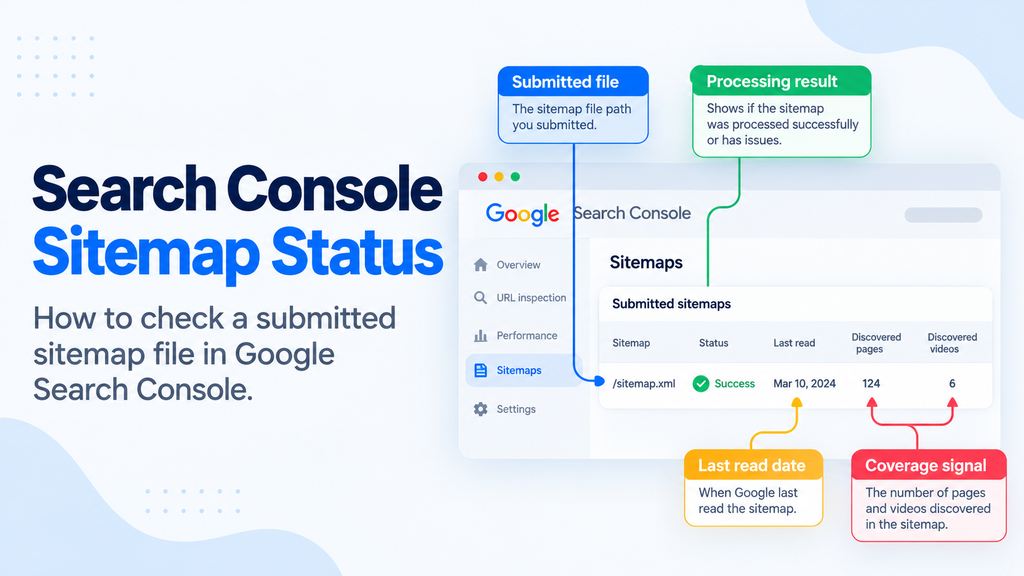
    4. Return to the report to check whether Google fetched and read it. A submission alone confirms neither successful processing nor page indexing.

    Google’s submission instructions cover both routes. A small, stable site can maintain a file manually; a changing catalogue usually needs automation.

    Common XML sitemap errors and how to fix them

    Start with the Sitemaps report status, then inspect a representative URL. Google’s Sitemaps report help distinguishes a file it cannot fetch from a readable file with errors. Individual page indexing has its own evidence.

    EvidenceLikely issueFix and verification
    Couldn’t fetchThe sitemap address may be wrong, blocked, unavailable or affected by a temporary server issue.Open the exact submitted URL. Use a live URL Inspection test to check crawl permission and page fetch, fix the response or block, then resubmit after a persistent failure.
    Sitemap had errorsXML may be malformed, contain an invalid date or URL, or exceed the file limit.Open the specific report error and line, repair escaped characters or tags, correct dates or split the file, then confirm Google can read the new version.
    URLs not accessible or not followedAn entry may redirect repeatedly or point to a page that cannot be fetched.Inspect that entry, repair the live page if it should exist, or replace the sitemap URL with its final preferred destination.
    Sitemap succeeds, page not indexedThe file was read, but the page may be blocked, noindex, a duplicate or simply not selected for indexing.Check the page in URL Inspection and Page Indexing. Fix the reported page issue where appropriate, then check again after Google recrawls it.

    Deleting a submitted sitemap does not erase Google’s knowledge of its URLs. Update the file and address the page itself. A healthy sitemap can contain an unindexed page.

    A worked fix and the checks that follow

    Illustrative scenario: a business moves /old-guide/ to /new-guide/ with a permanent redirect. Its sitemap still lists the old address, and Search Console reports that some URLs were not followed. The correct sitemap entry is the final, preferred /new-guide/ URL, provided that page is live and intended for indexing.

    The implementer updates the generator’s URL source, regenerates the sitemap and confirms that the new address appears while the old one does not. Next, they check the Sitemaps report for a successful read and use URL Inspection’s indexed and live views on the new page. The live test should show that Google can fetch the page, but that result alone does not promise indexing. If the page remains excluded, its specific Page Indexing reason becomes the next task. The site should also link internally to the new address instead of relying on the sitemap as its only discovery route.

    XML sitemap FAQs

    1. Does an XML sitemap guarantee indexing?

      No. It helps Google discover URLs, but Google decides whether to crawl and index each page.

    2. How do I create an XML sitemap?

      Use your CMS’s sitemap feature or a generator, select preferred indexable URLs, validate the file and submit its address in Search Console.

    3. How do I find a website’s XML sitemap?

      Check the site’s robots.txt for a Sitemap: line. You can also try common paths such as /sitemap.xml, but the filename may differ.

    4. Is an HTML sitemap the same thing?

      No. An HTML sitemap is a page of links for visitors. An XML sitemap is a structured file that helps crawlers discover URLs.

    5. Should I update <lastmod> every day?

      Only when the page has changed meaningfully and the date is accurate. Google can ignore dates that do not match real changes.

    6. Does a small website need an XML sitemap?

      Not always. Google can usually find well-linked pages, but a sitemap remains useful for discovery and monitoring.

    Conclusion

    A useful XML sitemap is a current list of your preferred pages, not a promise that they will appear in search. Start by checking which URLs your website actually publishes, then confirm that the file contains the versions you want indexed. If Search Console reports a problem, identify whether the fault is in fetching the file, parsing an entry or evaluating a particular page. Apply the matching fix and verify the result in the relevant report.

    For a routine site, keep generation automated and review the output after major content or URL changes. If sitemap entries, canonical choices and indexing reports disagree across many pages, a broader technical SEO audit can turn those findings into specific developer changes and follow-up checks.

  • What Is Robots.txt? What to Block, What to Allow and Why

    What Is Robots.txt? What to Block, What to Allow and Why

    An accidental Disallow: / can stop Google from crawling every page on a live site. A carefully scoped rule can spare a busy site requests to unimportant URL variations. Both outcomes come from the same small file.

    Robots.txt tells compliant crawlers which paths they may request. It is often confused with an instruction to remove pages from search results or with protection for private content. Neither assumption is safe. A blocked URL can still appear in Google, and anyone can open the file.

    The practical question is what you want to achieve for each URL. This guide explains which paths are sensible candidates for a block, what must stay open, and how to check the result after publishing. You will also see when noindex or authentication is the better tool.

    Quick summary

    • Robots.txt manages crawling. It does not reliably keep a web page out of search.
    • Leave important pages and the resources needed to render them accessible.
    • Block known, low-value URL patterns only after checking useful exceptions.
    • Test the live file and representative URLs after each change.

    What is robots.txt in SEO?

    Robots.txt is a plain text file at the root of a website host, such as https://www.example.com/robots.txt. It tells compliant crawlers which URL paths they may access. Google uses it mainly to manage crawling traffic, according to its introduction to robots.txt.

    Rules apply to the host, protocol and port serving the file. A file on www.example.com does not automatically govern shop.example.com. If no rule restricts a path, Google can crawl it by default. That permission is only one step in the search process. It does not promise that Google will index the page.

    How do robots.txt rules work?

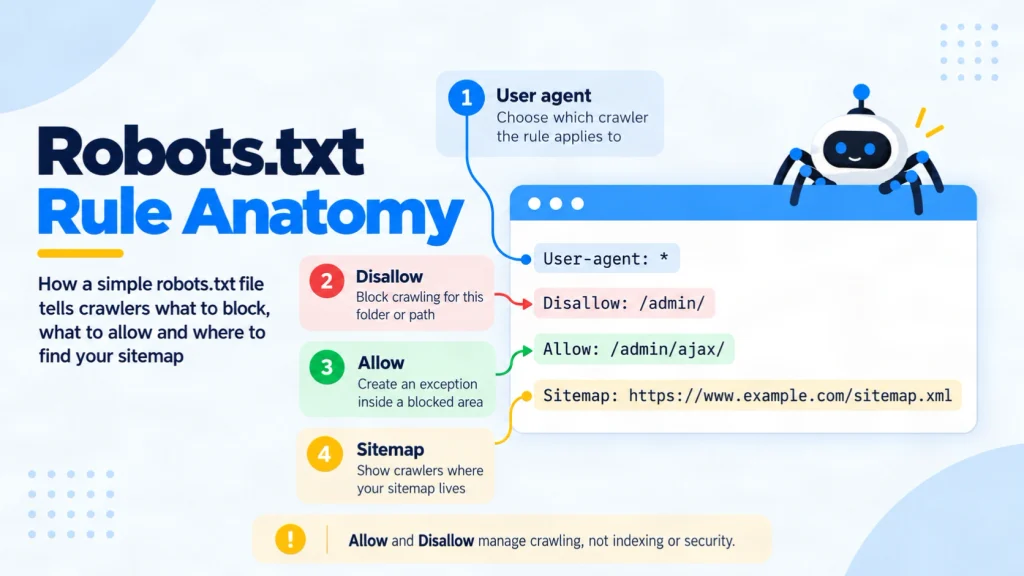
    Robots.txt rule anatomy showing user-agent, disallow, allow and sitemap directives

    A User-agent line identifies the crawler. The * value addresses crawlers generally. Disallow names paths to avoid, while Allow creates an accessible exception. An optional Sitemap line gives the full URL of a sitemap. It does not cancel a blocking rule.

    Here is an illustrative, untested file for a site where /search/ holds internal results and /search/help/ is a useful public guide:

    User-agent: *
    Disallow: /search/
    Allow: /search/help/
    Sitemap: https://www.example.com/sitemap.xml
    

    For Google, /search/?q=blue is blocked, /search/help/ is allowed, and /services/ remains allowed by default. Google applies the most specific matching path; if equally specific rules conflict, Allow wins. Paths are case-sensitive, so test the real URL variants. These rules follow Google’s robots.txt specification.

    What should you block with robots.txt?

    Block a known URL pattern when fetching it serves little search purpose or creates unnecessary crawler requests. Start with actual paths and their intended search role. Do not copy a platform-wide template without checking what your site serves at each path.

    Internal search results or large sets of filtered URLs can be candidates if those variations do not need to appear in Search. Google’s faceted navigation guidance advises leaving useful item pages and a main listing accessible while limiting unwanted filter combinations. Some filtered landing pages may have a valid search purpose, so a blanket parameter block needs review.

    For a small site whose useful pages are already crawled, there may be no crawl problem to solve. Google’s crawl budget guide is aimed mainly at large or rapidly changing sites. A rule should answer a demonstrated need, such as an infinite URL space or server load, rather than a generic desire for a cleaner file.

    What should you allow?

    Keep the pages you want Google to evaluate accessible: key services, products, articles and relevant category pages. Allow the CSS, JavaScript and images that Google needs to understand those pages. Google’s resource blocking guidance warns that blocked resources can make dependent pages harder to analyse.

    Also leave a public page crawlable if you want Google to see its noindex instruction. A robots.txt block prevents Google from fetching the page and reading its meta tag or X-Robots-Tag header. Google’s noindex instructions explain this requirement.

    You do not need Allow: / just to permit ordinary crawling. It is the default without a conflicting restriction. Use a specific Allow when a genuinely useful path sits inside a blocked area, as in the example above.

    What can robots.txt not do?

    Robots.txt does not control every stage of search or enforce access to private information. Pick the control that matches your goal:

    GoalAppropriate controlWhat to verify
    Reduce crawler requests to a known, unimportant patternNarrow robots.txt DisallowThe pattern is blocked and useful exceptions remain open.
    Keep an accessible web page out of Google SearchCrawlable noindex meta tag or HTTP headerGoogle can fetch the page and detect the instruction.
    Protect confidential contentAuthentication and server access controlAn unauthorised request cannot retrieve the content.

    Google may discover a blocked URL through links and show its address without a page description. Blocking that URL and adding noindex to its page does not solve the conflict because Google cannot read the tag. The file is public, and some crawlers may ignore it.

    How do you create and test a robots.txt file?

    You need access to the root of the host or to the CMS setting that serves its robots.txt file. Decide the expected result for a few real URLs before changing any rule.

    1. List representative URLs. Include an important page, one intended blocked path, a useful exception and any separate subdomain. Record which crawler the rules should address.
    2. Draft and publish the file. Save plain UTF-8 text as robots.txt at the host root. CraftDigitally’s robots.txt generator and checker can help draft or inspect a file, but review every path before publishing. Google’s file creation guide explains the location and format.
    3. Check the served file. Open the exact /robots.txt address. In the Search Console robots.txt report, confirm Google’s fetched version and any parsing warnings or errors.
    4. Test exact URLs. Use Search Console’s URL Inspection tool to compare crawl access for the important page, blocked example and exception. A positive live test shows access, not guaranteed indexing.
    5. Recheck after deployment. Confirm the intended paths still behave correctly and watch affected URLs in Page Indexing. Google normally discovers file updates automatically. Request a robots.txt recrawl in the report when an urgent correction needs attention.

    Common robots.txt mistakes

    • Leaving User-agent: * with Disallow: / on a live site blocks compliant crawlers from every path.
    • Adding noindex inside robots.txt does not work for Google. Put it on the crawlable page or in its HTTP response.
    • Blocking a broad directory or rendering resource can affect useful URLs you did not intend to restrict.
    • Assuming Crawl-delay slows Googlebot is incorrect. Google does not support that directive in robots.txt.

    Recheck the file after a migration or routing change, when familiar paths may behave differently.

    Frequently asked questions

    1. Is robots.txt still used?

      Yes. Google and other compliant crawlers use it for access rules. Its value depends on your URL structure and crawler needs, not on having a file for its own sake.

    2. Is robots.txt legally binding?

      It is an advisory technical protocol that cannot force a crawler to comply. Legal effects depend on the facts and jurisdiction, so do not use it as a legal or security barrier.

    3. What happens if a robots.txt file is missing?

      Google generally treats a missing file as no crawl restrictions. Other access controls, server errors or page-level index rules can still affect a URL.

    4. Does each subdomain need its own file?

      Yes. shop.example.com and www.example.com have separate roots. Test each host’s file and the URLs it governs.

    5. Does Google follow a Crawl-delay rule?

      No. Google does not support Crawl-delay in robots.txt. Investigate server capacity and Google’s crawling guidance if requests cause strain.

    6. Can robots.txt block an image from Google Images?

      It can stop Googlebot from crawling a media file when the matching rule applies. Check the exact image URL and whether it is served from another host.

    Final thoughts

    Start with each URL’s intended outcome. A narrow robots.txt rule may fit when the goal is to reduce crawler requests to a known, low-value pattern. Keep important pages and their rendering resources accessible. Use a crawlable noindex when a public page should be excluded from Google, and require authentication for private content.

    Then test the live file against real allowed and blocked URLs. Review the report after changes and confirm that the result matches the goal. If the rule affects many routes or you cannot explain its exceptions, map the URL set before release. CraftDigitally’s technical SEO service can review the live evidence and give your team a precise fix.

  • Crawlability vs Indexability: What Is the Difference?

    Crawlability vs Indexability: What Is the Difference?

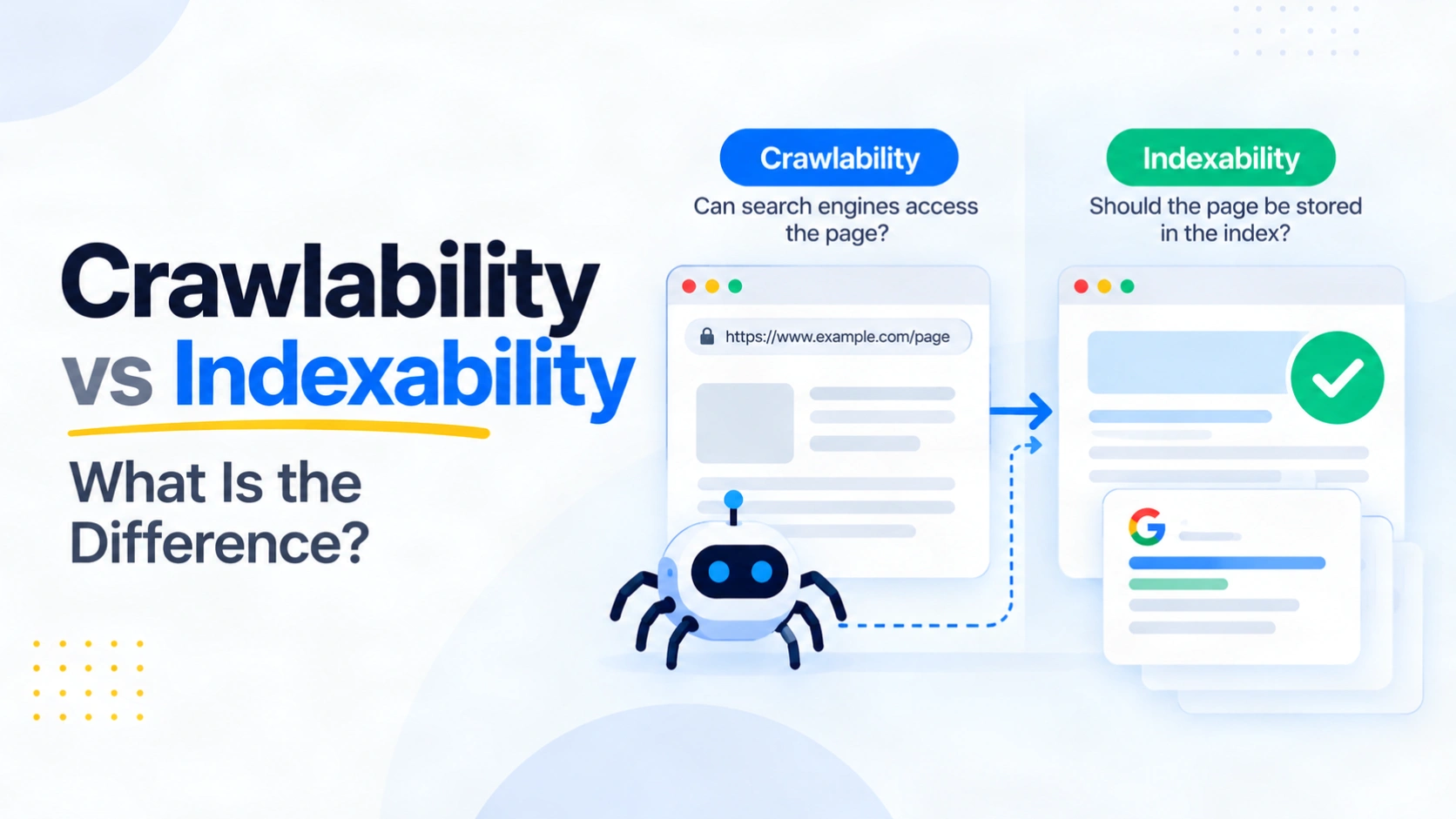
    A service page can load perfectly in your browser, appear in your sitemap and still be missing from Google. To find the reason, ask two questions. Can Googlebot reach and read the page? Can Google include the processed page in its index? This is the practical difference between crawlability vs indexability.

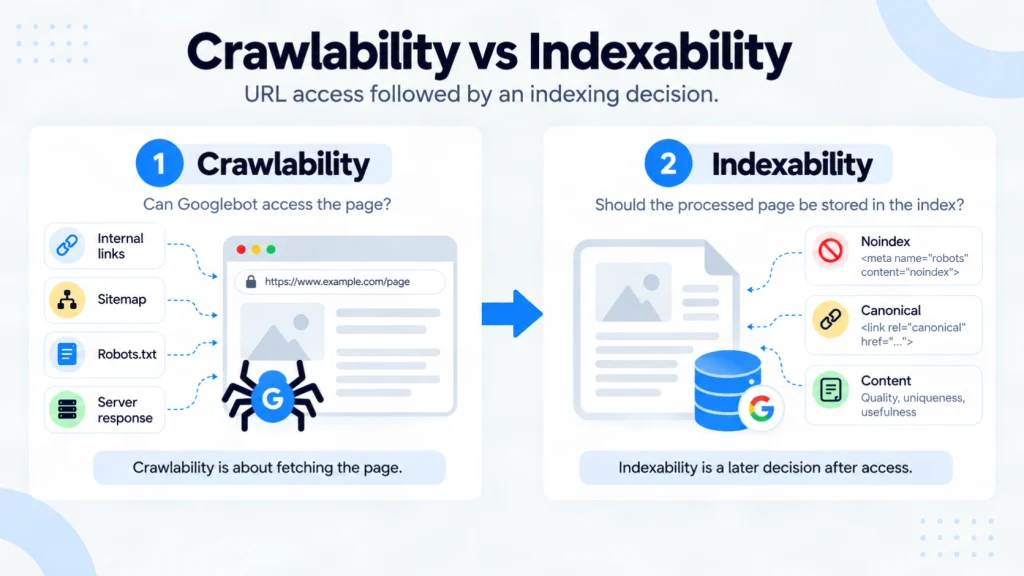
    Crawlability concerns access to a URL and its content. Indexability concerns whether that content is eligible to be stored and potentially shown in results. A page can pass the first check and fail the second. This distinction changes the fix. Editing robots.txt will not remove an accidental noindex header, while requesting indexing will not repair a blocked page. The steps below show how to locate the failed stage and verify the result.

    Crawlability vs Indexability

    Quick Summary

    • Crawlability asks whether a search crawler can retrieve a page.
    • Indexability asks whether a processed page is eligible for the search index.
    • A crawled page can remain excluded because of noindex, canonical selection or Google’s indexing decision.
    • Search Console’s indexed result and live test answer different questions.

    What Does Crawlability Mean?

    Crawlability is a crawler’s ability to access a URL and retrieve its content. Google first has to discover the URL, perhaps through an internal link or sitemap. Discovery does not prove that Googlebot fetched the page.

    During crawling, Googlebot requests the URL and processes the server response. A robots.txt rule, login requirement or failed response can stop it accessing useful content. Google describes discovery and fetching in its guide to how Search works.

    Internal links help Google find pages, provided the links are crawlable. Google’s link best practices for Search explain why standard links with an href attribute matter. For the wider process, see CraftDigitally’s technical SEO foundations guide.

    What Does Indexability Mean?

    Indexability is a page’s eligibility to be analysed and included in a search index after Google can access it. Actual indexing is Google’s outcome, and eligibility alone does not guarantee inclusion.

    A page intended for Google Search should return a successful response, expose indexable content and avoid an unwanted noindex directive. Google documents those minimum technical requirements for Search. A noindex instruction can appear in the page’s HTML or an X-Robots-Tag response header.

    Google also chooses a representative URL when it finds substantially similar pages. Your declared canonical is a preference, and Google can select another URL. Its canonicalisation guidance for duplicate pages explains that choice.

    Crawlability vs Indexability at a Glance

    CheckCrawlabilityIndexability
    Main questionCan Googlebot fetch and read this page?Can Google store this page, and has it selected this URL?
    Common controlsRobots.txt, access restrictions, server responseNoindex, canonical signals, usable content
    Search Console evidenceCrawl allowed and Page fetchIndexing allowed, Google-selected canonical and index status
    Misleading shortcutA URL in a sitemap must have been crawledA successful live test means the URL is indexed

    A sitemap can help Google discover a URL, but it cannot guarantee crawling or indexing. Google’s sitemap guidance for site owners makes that limit explicit.

    Which Stage Is Failing?

    Start with the status of the specific URL. Google’s Page Indexing report explanations distinguish the stages:

    • Discovered – currently not indexed: Google knows the URL but has not crawled it yet. Check discovery paths, access and whether the URL matters before diagnosing its content.
    • Crawled – currently not indexed: Google fetched the page but has not indexed it. Review the page and its signals. The status alone does not prove that content quality is the cause.
    • Excluded by noindex: Google encountered an indexing instruction. Confirm whether the exclusion was intentional and inspect both HTML and response headers.
    • Alternate page with proper canonical tag: Another URL represents the content. This may be the intended outcome for a duplicate.

    There is one important exception to a simple two-step story. A URL blocked by robots.txt can sometimes appear in Google results because another page links to it. Google may know the URL without crawling its content. The Google robots.txt guide explains why a crawl block is not a reliable removal method.

    How to Check and Verify One URL

    Choose a page that should attract relevant search visits. Record the exact URL and the result you expect, then follow this sequence:

    1. Inspect Google’s recorded state. Enter the full URL in Search Console’s URL Inspection tool. Read its index status, last crawl information and Google-selected canonical where available.
    2. Test the current page. Run Test live URL. Check Crawl allowed, Page fetch and Indexing allowed. Google’s URL Inspection documentation explains what each result measures.
    3. Check the live response. Confirm the intended HTTP status, robots.txt permission, meta robots instruction and X-Robots-Tag header. If JavaScript supplies essential content, inspect the rendered version too.
    4. Match the evidence to the goal. Remove an accidental noindex only from pages intended for Search. Fix an unintended robots block or server failure at its source. Review canonical signals when Google selects another URL.
    5. Retest and monitor. Verify the changed response and repeat the live test. Then monitor Google’s indexed result after it recrawls the page.

    A live result saying a URL can be indexed shows present eligibility, not inclusion in Google’s index. Our technical SEO audit checklist places these checks before broader performance and enhancement work.

    A Worked Example

    Illustrative scenario: A service page returns HTTP 200 and appears normal in a browser. Search Console says Google crawled it but excluded it because of noindex. The live response contains X-Robots-Tag: noindex, added by a shared page template.

    The page is crawlable because Google can fetch it. It is not indexable while that instruction applies. The developer should remove the header from the service template if those pages are meant to appear in Search. After deployment, check the response again, run a live URL test and monitor the indexed result after Google’s next crawl.

    A thank-you page using the same header may need to remain excluded. Google’s noindex implementation guidance also explains that Google must be able to crawl a URL to read its noindex instruction.

    When Is Exclusion Expected?

    An excluded URL is not automatically a defect. A thank-you page may intentionally use noindex. A filtered duplicate may correctly point to a canonical page. An old URL may redirect to a replacement.

    Decide which URL should appear in Search before changing a directive. Prioritise exclusions that affect important service, product or editorial pages. CraftDigitally’s robots.txt generator and checker can help review access rules, while Search Console shows Google’s indexing outcome.

    Frequently Asked Questions

    1. What is the difference between crawling and indexing?

      Crawling is Googlebot fetching a page. Indexing is Google analysing it and deciding whether to store it. A fetched page can remain excluded.

    2. What does “crawlability” mean?

      It means a crawler can access and retrieve a URL’s content. Finding the URL through a link or sitemap is a separate step.

    3. How can I check if my website is crawlable?

      Inspect representative URLs in Search Console. For each, check Crawl allowed and Page fetch in a live test, then review robots.txt and the server response.

    4. What is an index in SEO?

      An index is a search engine’s database of processed content. Inclusion makes a page eligible to appear for relevant searches.

    5. Can a page be crawled but not indexed?

      Yes. A readable noindex directive, canonical selection or Google’s decision can keep a crawled page out of its index.

    6. Can a blocked URL still appear in Google?

      Sometimes. Google can list a robots.txt-blocked URL based on other links without reading its content. Use noindex with crawl access when exclusion is the goal.

    7. Does submitting a sitemap guarantee indexing?

      No. A sitemap helps Google discover URLs. It does not guarantee that Google will crawl or index every page listed.

    Final Thoughts

    The useful question is where an important page stops progressing. If Google cannot fetch it, check access, robots.txt and the server response. If Google fetched it but did not index it, inspect noindex, canonical selection and the content Google received. Compare Search Console’s recorded index status with a live test so an old result does not hide a completed fix.

    Leave intentional exclusions alone. For a pattern affecting many valuable pages, document the affected template, the response that proves the issue and the expected result after a change. If you want that evidence checked across your site, request a free technical SEO audit from CraftDigitally.

  • Technical SEO Audit Checklist: What to Check and in What Order

    Technical SEO Audit Checklist: What to Check and in What Order

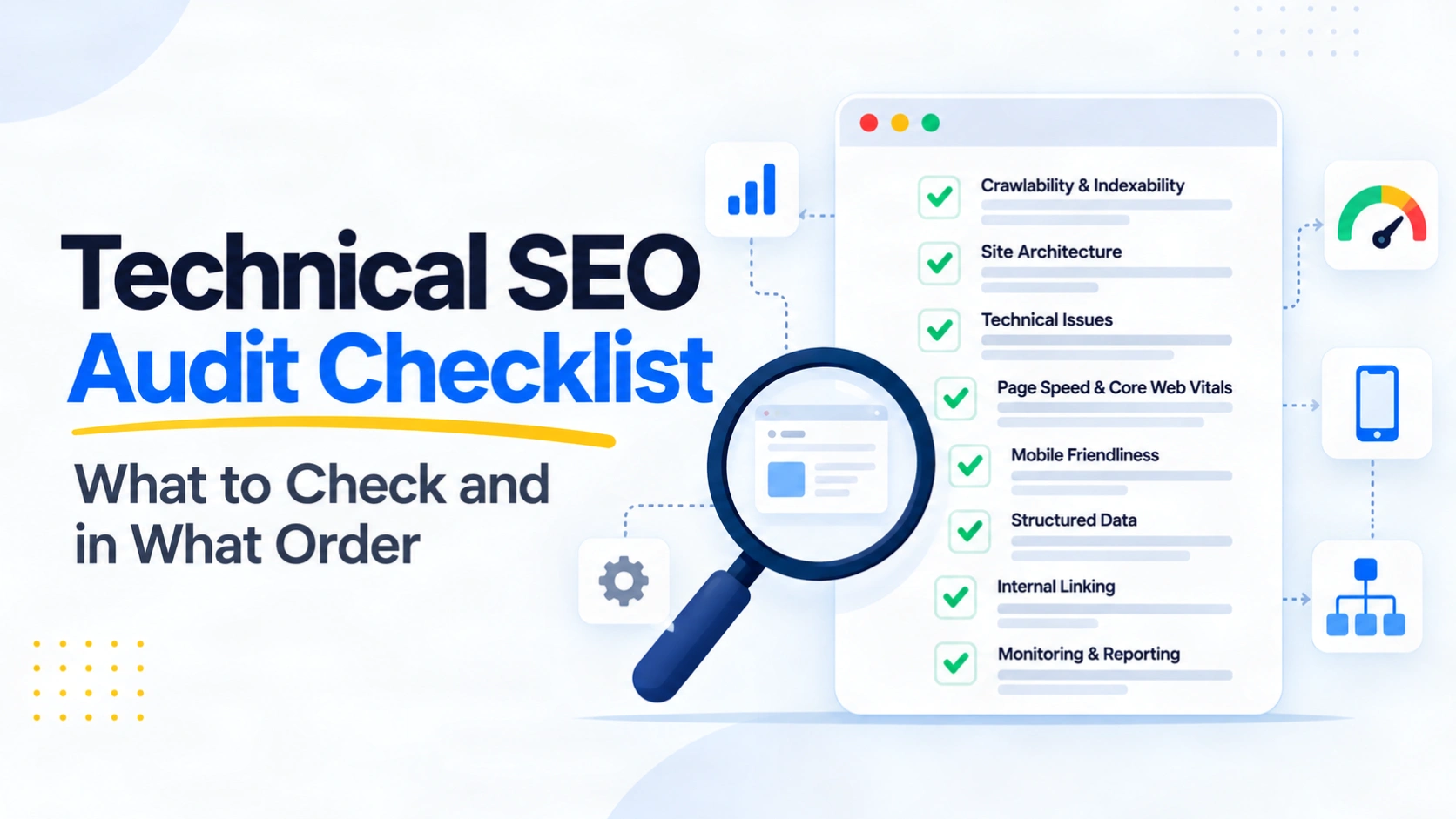
    A technical SEO audit should answer one question before anything else: what is stopping search engines from accessing, processing or indexing the pages that matter?

    The order matters. Testing structured data on a page that returns a server error is wasted effort. Improving Core Web Vitals on a page carrying an accidental noindex directive will not solve its visibility problem.

    This checklist starts with technical eligibility, then moves through discovery, rendering, architecture and page experience. Each important finding should be verified against the live site before it becomes a recommendation.

    Quick Summary

    Run a technical SEO audit in this order:

    1. Define the audit scope.
    2. Check crawler access and server responses.
    3. Verify indexability and canonical signals.
    4. Review sitemaps, internal links and discovery.
    5. Test rendering where JavaScript matters.
    6. Audit redirects, broken links and status codes.
    7. Review performance, mobile delivery and HTTPS.
    8. Validate structured data and relevant specialist checks.
    9. Prioritise findings, implement fixes and retest.

    What Is a Technical SEO Audit?

    A technical SEO audit evaluates whether a website’s technical setup allows search engines to discover, crawl, process and index its important pages correctly. It examines how well the site applies technical SEO fundamentals.

    Google’s minimum technical requirements are a useful starting point. Googlebot must be able to access the page, the page must return a successful response and it must contain indexable content.

    A technical audit checks how consistently those conditions hold across important templates and URL groups. Content, keyword and backlink audits are separate tasks with different evidence.

    Before You Start, Define the Audit Scope

    Do not start by exporting every warning from a crawler. First decide what the audit is meant to cover.

    Record the main domain, subdomains, important page types, CMS and recent migrations or template changes. Identify the pages that generate leads, sales or important organic visits.

    You will usually need Google Search Console plus a crawler such as Screaming Frog, Semrush or Ahrefs. Browser developer tools and PageSpeed Insights help with deeper checks.

    Step 1: Check Access and Server Responses

    Start with access because nothing later matters if the page cannot be fetched correctly.

    Confirm that important URLs return the intended HTTP response and are publicly accessible. Google’s technical requirements state that pages need a successful HTTP 200 response to be eligible for indexing.

    Then review robots.txt. Google’s robots.txt guidance explains that the file controls crawler access. It is not a reliable way to remove a web page from Google Search. Use our robots.txt generator and checker to review your file for accidental crawl restrictions.

    Look for accidental blocks, server errors, login walls and blocked resources that affect rendering. Verify critical issues against the live response instead of relying only on a crawler label.

    Step 2: Check Indexability and Canonical Signals

    Once Google can access the page, confirm whether the page is allowed and intended to be indexed.

    Use the Page Indexing report to look for site-level patterns. Use URL Inspection when you need Google-specific evidence for an individual URL.

    Check robots meta directives, X-Robots-Tag headers, canonical tags, Google-selected canonicals, duplicate URLs and unexpected exclusions.

    Do not assume every excluded URL needs fixing. Google notes that some non-indexed URLs are expected, including duplicates and deliberately excluded pages.

    The audit should ask whether the correct pages are indexed, not whether every possible URL is indexed.

    Step 3: Check XML Sitemaps, Internal Links and Discovery

    Next, check how search engines discover the URLs you care about.

    A sitemap tells search engines which URLs you consider important. Google’s sitemap documentation also makes clear that sitemap inclusion does not guarantee crawling or indexing.

    Review whether the XML sitemap contains canonical, indexable URLs and excludes redirects, errors and unwanted duplicates.

    Then crawl the internal link structure. Look for orphan pages, broken links, excessive depth and navigation that hides key URLs.

    Use crawlable link guidance when checking whether navigation links can be followed reliably.

    Step 4: Check Rendering Where JavaScript Matters

    Rendering needs deeper investigation when important content, links or metadata depend on JavaScript.

    Compare the server HTML with the rendered page on affected templates. Check whether titles, canonicals, main content and internal links appear as expected.

    Do not label every JavaScript website as a problem. The question is whether search engines can access the important output reliably.

    Step 5: Review Status Codes, Redirects and Broken Paths

    Now check what happens when users and crawlers follow URLs across the site.

    Find broken internal links, redirect loops, long chains and irrelevant redirect destinations.

    A 404 is not automatically an SEO fault. An intentionally removed page with no suitable replacement may correctly return 404 or 410. Prioritise broken journeys that affect valuable URLs.

    Step 6: Review Performance, Mobile Delivery and HTTPS

    Once access and indexability are sound, review how important templates perform for users.

    Use Core Web Vitals guidance and PageSpeed Insights to investigate loading performance, responsiveness and visual stability.

    Check representative templates instead of treating one homepage score as the whole site. Confirm that important mobile content remains available and pages are served securely over HTTPS.

    Performance matters, but it does not replace crawl and indexability checks.

    Step 7: Validate Structured Data and Conditional Checks

    Validate structured data only after confirming that the page itself is accessible and indexable.

    Google explains that structured data can support eligible search features, but valid markup does not guarantee a rich result.

    Check whether the markup matches visible content. If relevant markup is missing, use our structured data generator to prepare JSON-LD for implementation. Add specialist checks only when they apply. Hreflang belongs in an international-site audit, while server-log and crawl-budget analysis should be justified by scale or crawl behaviour.

    Prioritise Findings Before You Fix Anything

    A crawler can return hundreds of warnings. The audit’s value comes from deciding which ones matter. Prioritise in this order:

    1. Blocking issues: important pages cannot be accessed, rendered or indexed.
    2. High-impact consistency issues: template-wide canonical, redirect, sitemap or internal-link problems.
    3. Experience issues: performance or mobile problems on important templates.
    4. Enhancements: structured data and lower-risk improvements.
    5. Monitor or no action: expected exclusions, intentional 404s and warnings without a meaningful consequence.

    Illustrative example: a crawl finds 4,000 noindexed URLs. Most filtered search pages may be intentionally excluded. If valuable category pages inherited the same noindex header from a template, that becomes a high-priority fix.

    Issue count alone does not determine priority.

    Turn Every Important Finding into a Developer-Ready Task

    A technical SEO audit should finish with an actionable record, not a dashboard export. See how we verify audit findings before recommending changes to developers.

    For each important issue, document the affected URL or template, evidence, likely cause, recommended change, owner, priority, acceptance criteria and retest method.

    After deployment, check the live response again. For indexing issues, use URL Inspection or the relevant Search Console report after Google has processed the change.

    The audit is complete when the intended behaviour is verified.

    Frequently Asked Questions

    1. What is included in a technical SEO audit?

      It usually covers crawl access, indexability, canonicals, sitemaps, internal links, rendering, redirects, performance, mobile delivery, HTTPS and structured data.

    2. Can I do a technical SEO audit myself?

      Yes, especially on smaller sites. Search Console and a crawler cover many checks. Complex JavaScript, server or large-site issues may need developer or specialist support.

    3. How long does a technical SEO audit take?

      It depends on site size, templates and complexity. A small site can be reviewed quickly, while large, international or JavaScript-heavy sites need deeper investigation.

    4. How often should you run a technical SEO audit?

      Run one after migrations, redesigns, major template changes or unexpected visibility problems. Ongoing monitoring is usually more useful than relying on a fixed annual schedule.

    5. Which tools do you need for a technical SEO audit?

      Start with Google Search Console and a crawler. Add browser developer tools, PageSpeed Insights and the Rich Results Test when the issue requires them.

    6. Should every SEO audit warning be fixed?

      No. Some exclusions, 404s and crawler warnings are expected. Verify the business and search impact before turning a warning into a task.

    Final Thoughts

    A technical SEO audit works best when the checks follow the same dependency chain that search engines face.

    Start with access. Confirm indexability. Then review discovery, rendering, architecture, status codes, performance and structured data. Most importantly, verify each serious finding before asking someone to fix it.

    This order prevents teams from spending hours on low-impact warnings while important pages remain blocked or excluded.

    If you want an audit that documents the evidence, priority and exact fix, CraftDigitally’s technical SEO service focuses on developer-ready findings. You can also request a free technical SEO audit to see what is broken before committing to implementation.

  • What Is Technical SEO? Crawling, Indexing and Site Health Explained

    What Is Technical SEO? Crawling, Indexing and Site Health Explained

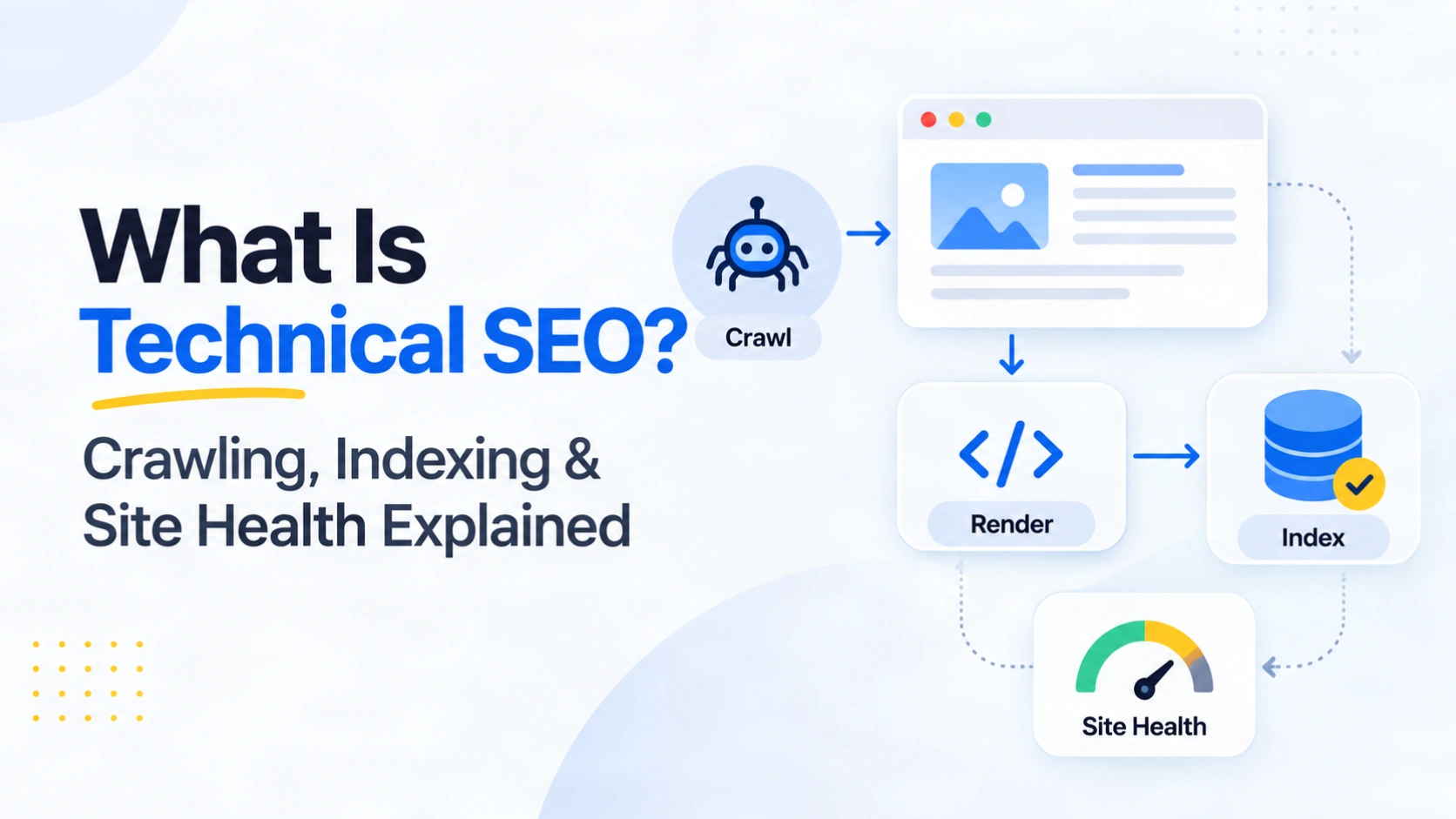
    Technical SEO helps search engines access, process and understand a website correctly. It covers crawling, rendering, indexing, site structure, performance and search appearance.

    A page can contain useful content and still struggle if search engines cannot reach it, render its important information or identify the correct URL to index. Technical SEO helps remove those barriers.

    The goal is not a perfect audit score. The goal is to make important pages easy to find, accessible, indexable and reliable for users. A good process also verifies whether a fix worked.

    Quick Summary

    • Technical SEO supports discovery, crawling, rendering and indexing.
    • Crawling and indexing are separate stages.
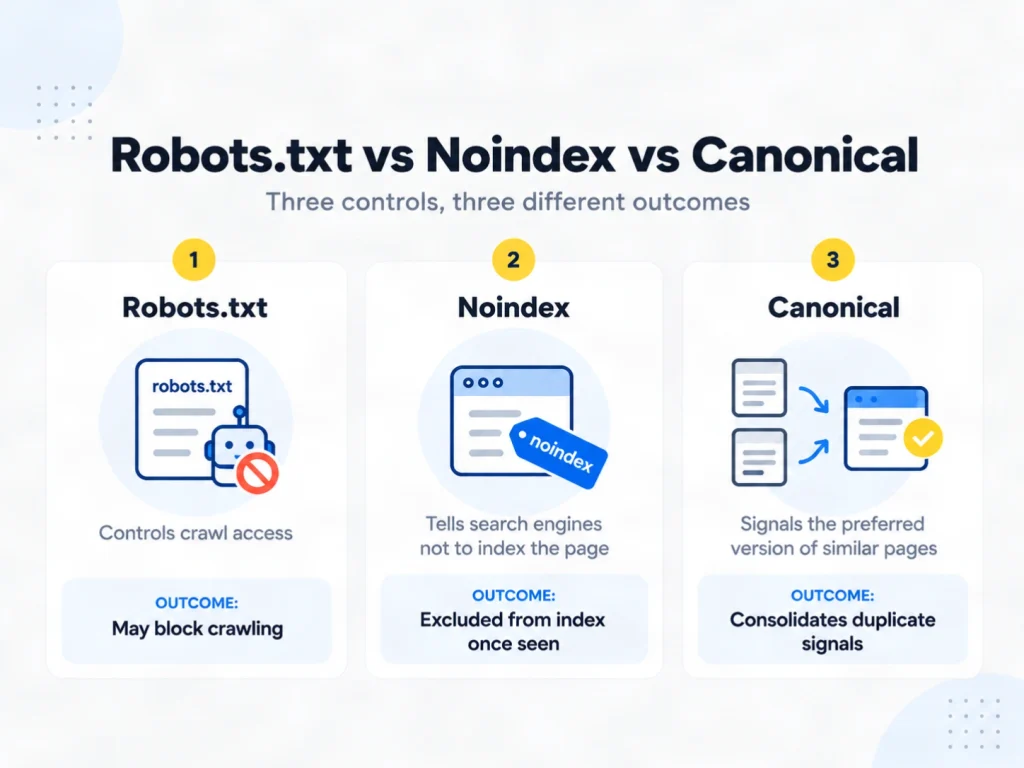
    • Robots.txt, noindex and canonical tags solve different problems.
    • Site health includes crawlability, indexability, links and performance.
    • Technical fixes should be retested after implementation.

    What Is Technical SEO?

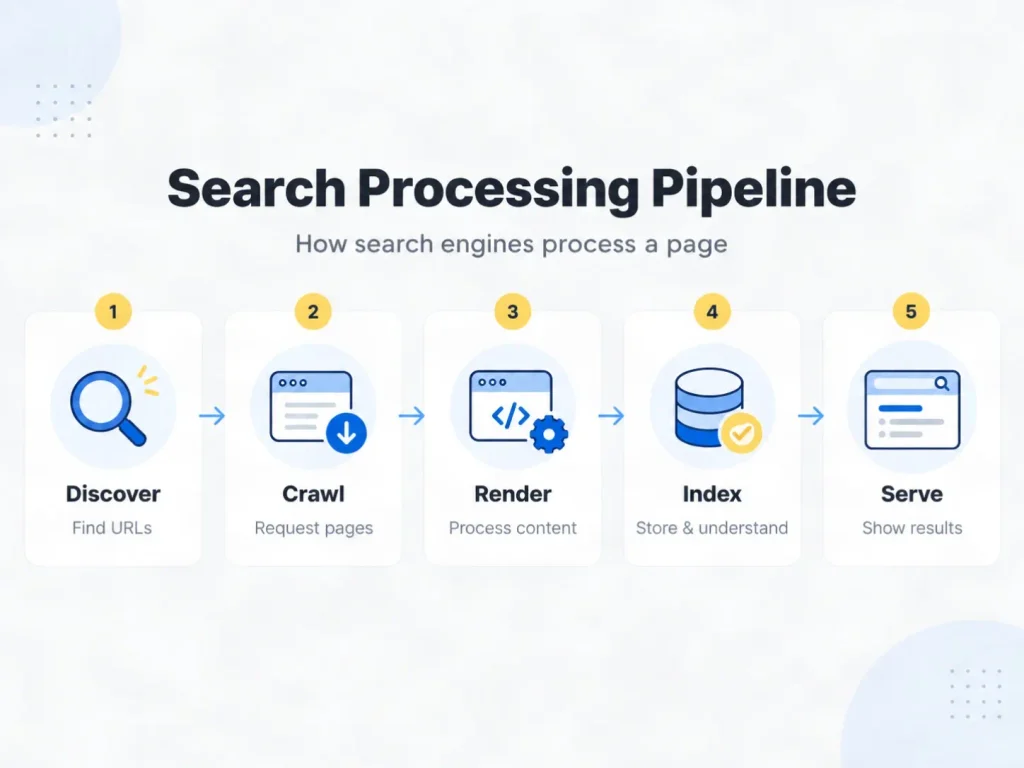
    Search engine process from discovery and crawling to rendering, indexing and serving

    Technical SEO improves the parts of a website that affect how search engines access and process its pages. It includes server responses, crawl controls, internal links, sitemaps, canonical tags, JavaScript rendering, structured data and page performance.

    Google explains Search as a process that moves through crawling, indexing and serving results. Technical SEO helps reduce problems that interrupt that process.

    It differs from on-page SEO, which focuses more on content, headings, titles and search intent. Off-page SEO focuses on signals from outside the website.

    How Crawling, Rendering and Indexing Work

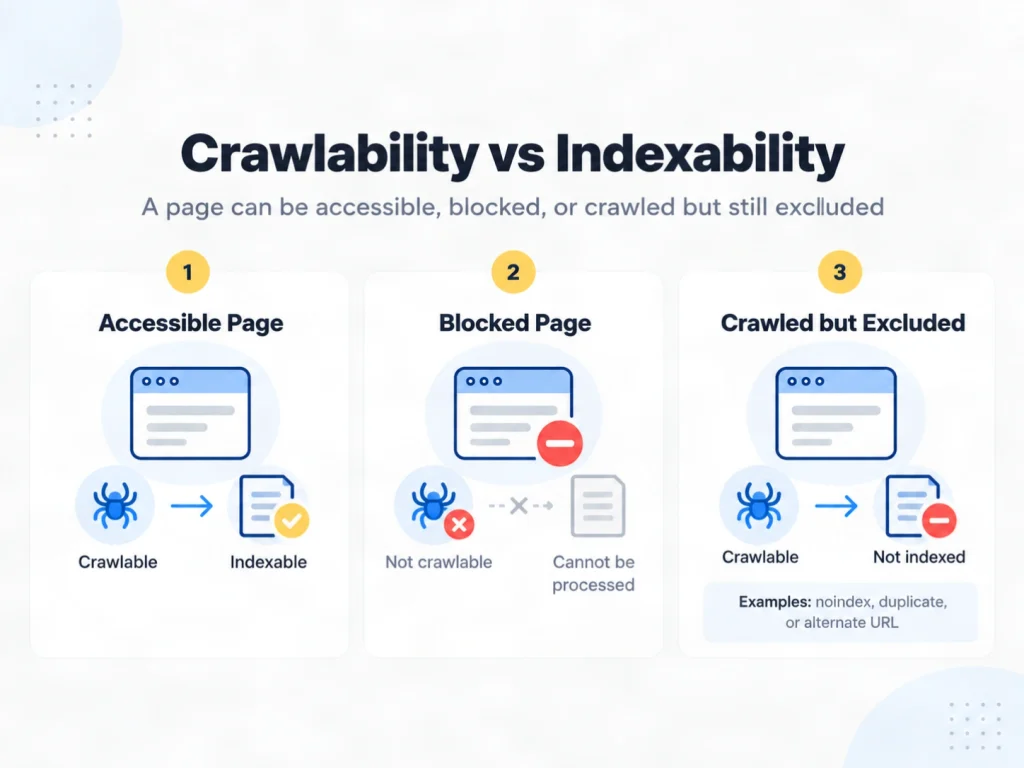
    Difference between crawlable, blocked and crawled but excluded web pages

    Technical SEO becomes easier to diagnose when each search stage is treated separately.

    Crawling: Can Search Engines Access the Page?

    Crawling starts when a search engine discovers a URL and requests it from the server. URLs can be found through internal links, XML sitemaps and links from other pages.

    Google’s technical requirements for Search say Googlebot must not be blocked, the page must return a successful HTTP response and it must contain indexable content to be eligible for indexing.

    Common crawl problems include:

    • important URLs blocked in robots.txt
    • broken internal links
    • redirect loops
    • server errors
    • orphan pages
    • navigation without crawlable links

    Robots.txt controls crawler access. It is not a reliable instruction for removing a normal page from Google’s index.

    Rendering: Can Search Engines See the Important Content?

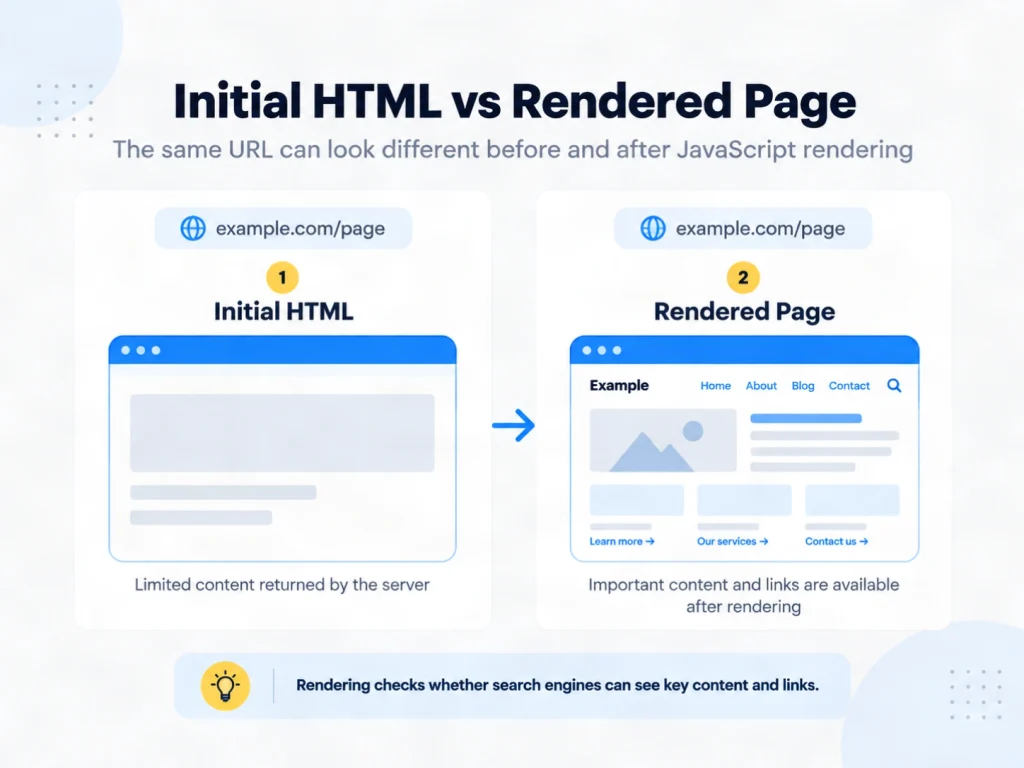
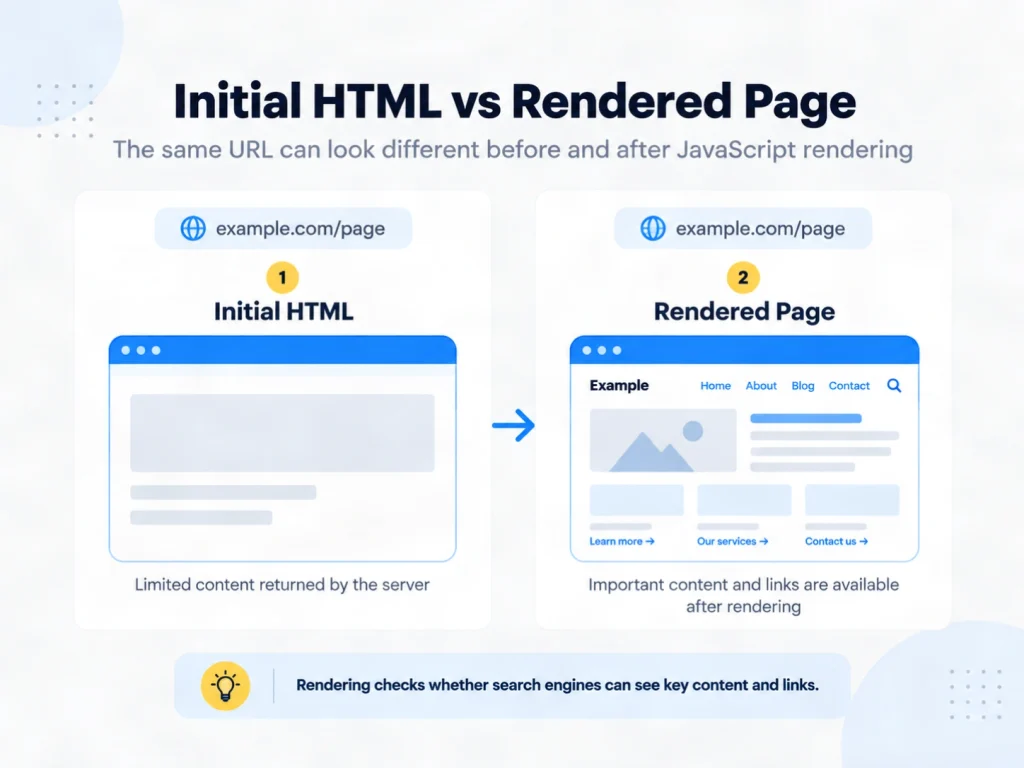
    Initial HTML compared with a fully rendered JavaScript web page

    Rendering matters when important content or links depend on JavaScript. Google can execute JavaScript, but the rendered page may differ from the HTML returned by the server.

    Google’s JavaScript SEO documentation describes crawling, rendering and indexing as separate processing stages for JavaScript pages.

    The useful question is whether important content, links, metadata and canonical signals remain available after processing.

    A page may look complete in a browser while its initial HTML contains little useful content. That does not prove an SEO problem, but it justifies comparing the server response with the rendered page.

    Indexing: Should This Page Be Stored?

    Comparison of robots.txt, noindex and canonical controls in technical SEO

    A crawled URL is not automatically an indexed URL.

    A noindex directive tells supported search engines not to index a page. Google’s noindex guidance explains that the page must remain crawlable for Google to see that directive.

    Canonicalisation solves a different problem. It tells Google which URL you prefer when several URLs contain duplicate or very similar content.

    Google treats redirects and rel="canonical" annotations as strong signals, while sitemap inclusion is weaker, according to its canonicalisation guidance.

    That is why crawl evidence and index evidence should not be treated as the same thing.

    What Does Site Health Mean in Technical SEO?

    Technical SEO site health checks for status codes, links, canonicals, sitemaps and performance

    Site health describes whether the technical parts of a website work together without creating avoidable search or user problems. It is not one official Google score.

    A technically healthy site usually has:

    • intended HTTP status codes
    • crawlable navigation
    • consistent canonical signals
    • useful XML sitemaps
    • no accidental noindex directives
    • accessible mobile content
    • stable rendering
    • acceptable real-world performance

    Key Areas to Check in Technical SEO

    Crawlability and Discovery

    Important pages should be discoverable through crawlable internal links. XML sitemaps can also help search engines find new or updated URLs.

    Google’s link best practices explain how standard crawlable links support discovery.

    Check robots.txt, broken links, redirect chains, status codes and orphan pages before assuming a page needs more content.

    Indexability and Canonicalisation

    Review robots directives, X-Robots-Tag headers, canonical tags, redirects, duplicate URLs, sitemap inclusion and Search Console index status.

    Do not treat every excluded URL as an error. Some URLs should remain excluded because they are duplicates, login areas or intentionally removed pages.

    Site Architecture and Internal Linking

    Site architecture affects how easily users and crawlers move between important pages.

    Internal links show relationships between pages and help search engines discover new URLs. Important pages should not depend on deep or inconsistent navigation paths.

    Mobile Experience and Core Web Vitals

    Google’s Core Web Vitals documentation identifies LCP, INP and CLS as metrics for loading performance, responsiveness and visual stability.

    Good scores are useful, but they do not guarantee rankings.

    Structured Data

    Structured data gives search engines explicit information about page content and entities.

    Google explains that structured data can help it understand page content and can make eligible pages available for supported search features.

    It does not guarantee a rich result.

    Technical SEO vs On-Page SEO

    Technical SEO asks whether a page can be accessed, processed and indexed correctly. On-page SEO asks whether the page communicates useful information and satisfies the searcher’s need.

    Strong headings and useful copy are mainly on-page elements. An accidental noindex header or server error is a technical issue.

    How to Check Your Site’s Technical SEO

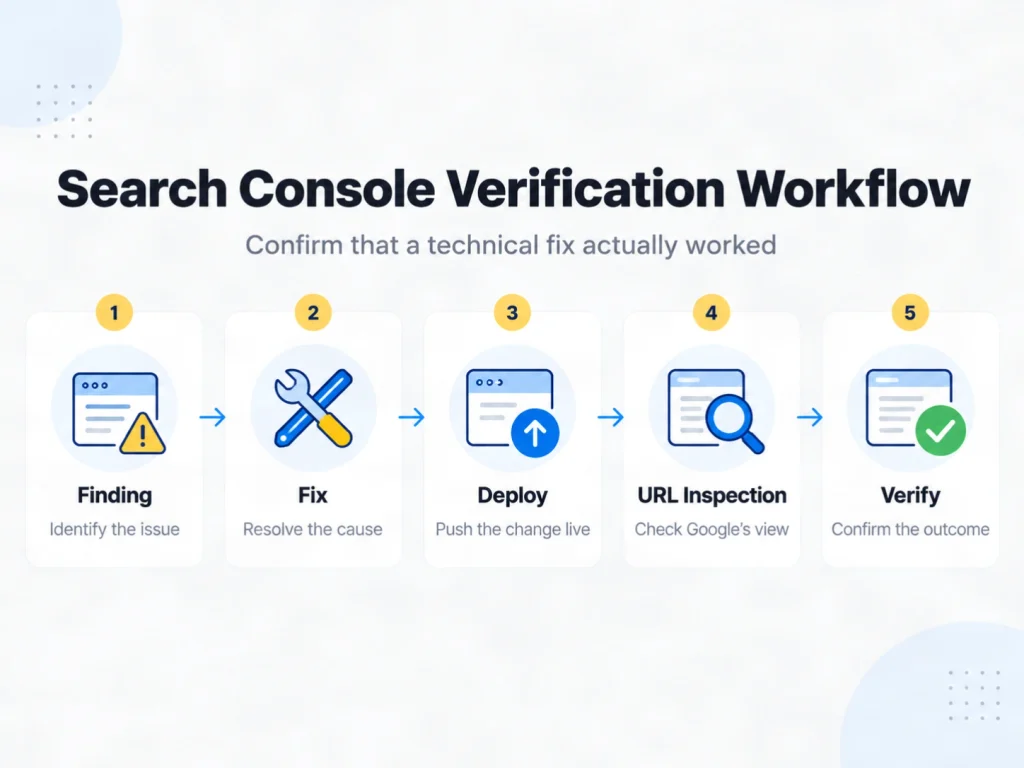
    Technical SEO workflow from finding and fixing an issue to deployment and verification

    A useful review follows the search process instead of collecting warnings without context.

    1. Check the live response. Confirm the page returns the intended status code.
    2. Confirm crawl access. Review robots.txt and infrastructure that could block crawlers.
    3. Inspect index controls. Check robots directives, headers and canonical signals.
    4. Review discovery. Confirm important pages appear in internal links and appropriate sitemaps.
    5. Check rendered content. Compare server HTML with rendered content on JavaScript-heavy pages.
    6. Review Search Console evidence. Use Page Indexing, Crawl Stats and URL Inspection.
    7. Test page experience. Review important templates instead of isolated tool scores.
    8. Retest after deployment. Confirm the response, content or directive changed as expected.

    Do You Need Coding Knowledge for Technical SEO?

    You do not need to be a developer to start technical SEO.

    Many checks use Search Console, browser developer tools and crawling software. Basic knowledge of HTML, status codes, redirects and robots directives is useful.

    Developer support becomes more important when problems involve servers, JavaScript, templates, routing or performance engineering.

    Does Technical SEO Matter for AI Search?

    Technical SEO still matters for Google’s AI search features because pages need to be accessible and eligible for Search before they can appear as supporting links.

    Google states that the same SEO foundations apply to AI Overviews and AI Mode. It does not require special AI schema, AI text files or separate technical optimisation for inclusion.

    This does not mean that passing a technical audit guarantees an AI citation.

    Frequently Asked Questions

    What are examples of technical SEO?

    Robots.txt rules, XML sitemaps, redirects, canonical tags, noindex directives, JavaScript rendering, structured data and Core Web Vitals.

    Can a page be crawled but not indexed?

    Yes. Crawling means the search engine accessed the URL. Indexing is a separate decision.

    Does technical SEO require coding?

    Not always. Coding is more useful for server, JavaScript, template and performance issues.

    Is page speed part of technical SEO?

    Yes. Performance depends on how the page and its resources are delivered.

    Is structured data part of technical SEO?

    Usually, yes. It is implemented in page code and can help search engines interpret eligible content.

    How often should technical SEO be checked?

    Check it after migrations, redesigns, template changes and major releases. Ongoing monitoring is better than one annual audit.

    Final Thoughts

    Technical SEO becomes easier when you stop treating it as a list of tool warnings.

    Start with the search process. Can a crawler discover the page? Can it fetch the correct response? Is important content available after rendering? Is the preferred URL indexable? Then verify the result after each meaningful fix.

    That approach helps teams focus on issues that affect important pages.

    If you need help proving where a problem sits, CraftDigitally’s technical SEO service focuses on live evidence, clear priorities and fixes your developer can act on.

  • How we run a technical SEO audit

    How we run a technical SEO audit

    We test your site the way a crawler sees it. Every finding is checked against your live server response, not a screenshot.

    We read what a crawler reads

    Search engines see your server response, not your design. We fetch each page the way a crawler does and check the real headers.

    Every finding is verified

    Nothing goes in the report because a tool said so. We reproduce each issue on the live site, then hand your developer the exact fix.

    You keep the report

    The audit is yours whether or not you hire us. Fix it with your own team, or ask us to implement it, will do it for you.

    You keep the report

    The audit is yours whether or not you hire us. Fix it with your own team, or ask us to implement it, will do it for you.